Themeora: Widgets & Wallpaper
- 4.7
- Rating
- 50.00K
- Installs
- Free
- Price

 Analysis by App-foxy
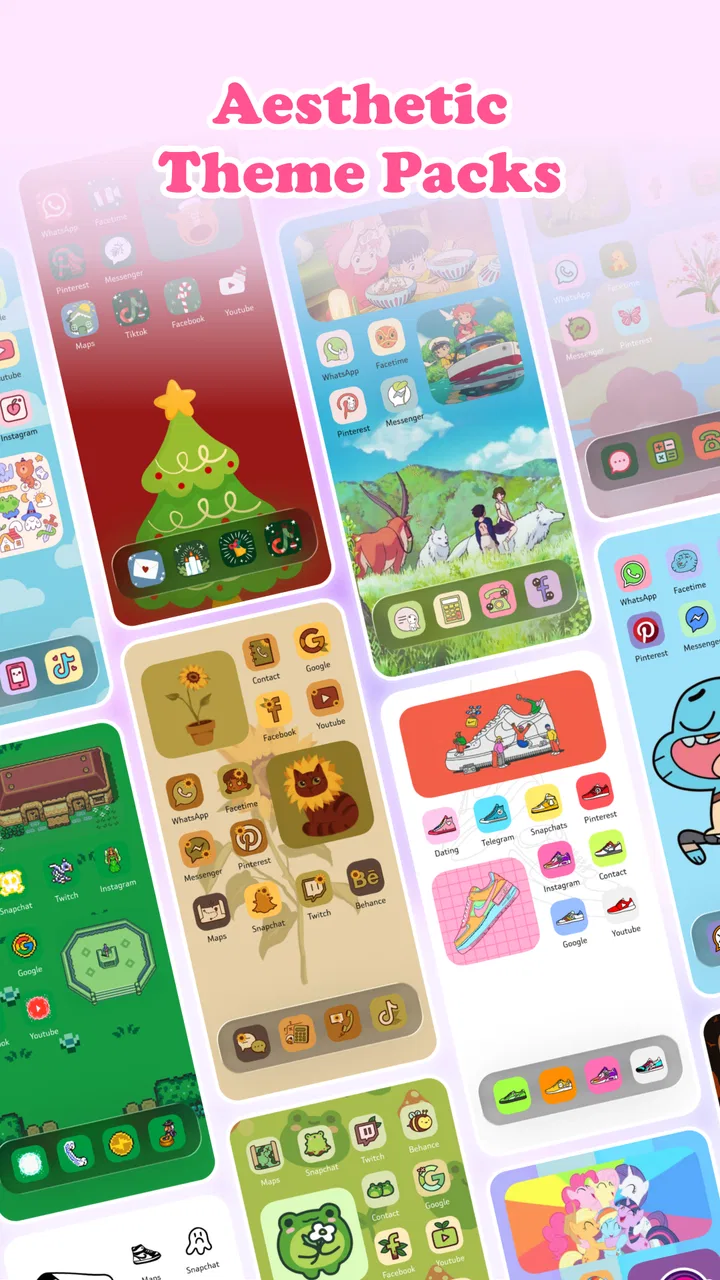
I usually notice a phone’s home screen only when it starts getting in my way. Too many mismatched icons, a wallpaper that makes text difficult to read, or widgets placed wherever there happens to be space can make an otherwise good device feel unfinished. Themeora: Widgets & Wallpaper is aimed at that exact problem. It is a free personalization app from Kayle AI Solution that brings themes, widgets, wallpapers, and app icons into one place, rather than making me assemble the look from several unrelated tools.
My impression is that Themeora works best as a guided starting point for a visual refresh. It is not simply a wallpaper browser, and it is not only an icon-changing utility. The appeal is the handoff between those parts: I can begin with the mood I want, carry that style through the background and widgets, then finish by adjusting the icons around it. That makes the process easier for someone who wants a coherent result without spending an evening searching through separate apps.
From an Untidy Home Screen to a More Cohesive Setup
I start this section with a simple idea: a more cohesive home screen comes from solving a real annoyance, not decorating every empty space. I’ll look at how a visual refresh can stay practical when familiar app positions and useful information matter as much as matching colors. That balance also sets up the next question: what should you expect when making those changes on an everyday phone?
You May Also Like

 Blood Strike: 2.5 Anniversary
Blood Strike’s Loadouts Turn Every Drop Into a Tactical Gamble
A close look at Blood Strike’s custom loadouts: how fast access to signature weapons reshapes its battle royale rhythm, rewards preparation, and narrows the gap between fights.

 Pandora - Music & Podcasts
Pandora’s Music Is Easy to Start, but Harder to Recover
Pandora’s strength is its low-effort path from a seed to a station. Its weak spot is how much confidence it asks you to place in connection, setup, and quiet recovery.

 8 Ball Pool
8 Ball Pool Is Built on Rivalries, Rematches, and Routine
A close look at the rivalries, rematches, shared routines, and unanswered safety questions that turn a quick pool match into a persistent mobile community.

 Samsung Music
Samsung Music’s Quiet Strength Is Playing What You Already Own
Its reach comes less from spectacle than from dependable access to a personal library. That simplicity is both the app’s strongest retention engine and its ceiling.

 AccuWeather: Weather Radar
AccuWeather Review: A Quick, Clear Forecast for Everyday Decisions
For everyday plans, the best forecast is the one you can understand quickly. AccuWeather makes rain timing, radar, and local conditions easy to act on, with a few trade-offs.

 Hill Climb Racing
Why Hill Climb Racing Still Turns Crashes Into One More Run
A tiny car, a bumpy hill and one more upgrade: Hill Climb Racing keeps resurfacing because its simple chaos makes every near-miss feel personal.
More From Our News Desk



Starting with the problem rather than a theme
The most useful way to approach Themeora is to begin with the state of your current home screen. If your main complaint is visual clutter, changing the wallpaper alone will not solve much. If the icons are the issue, a new theme may help, but only if the widgets and background do not compete with them. I found the app more practical when I treated customization as a small design workflow instead of choosing the first attractive image.
For example, imagine checking your phone during a busy morning. You want the weather, calendar, and frequently used apps to be easy to spot, but the screen has become a patchwork of default icons and unrelated colors. Themeora gives that situation a sensible sequence: choose an overall direction, select a background, add useful visual elements, and then make the app icons fit the result. The outcome depends on the choices I make, but the combined approach is more helpful than browsing wallpapers in isolation.
The app belongs to the personalization category, so its purpose is not to replace a launcher, manage files, or add productivity features. That distinction matters. I would recommend it to someone who wants the phone to feel more personal while keeping the familiar Android environment. I would not choose it as a solution for deep system-level changes or for someone who wants to rebuild every part of the interface from scratch.
Choosing a visual direction before changing individual pieces
A common mistake with customization apps is selecting each item independently. A striking wallpaper may look good in its preview but make widget text hard to read. An icon set may be attractive on its own yet feel disconnected from the background. Themeora’s combination of themes, wallpapers, widgets, and icons encourages me to think about the screen as one composition.
I get better results by deciding first whether I want a calm, colorful, dark, minimal, or more expressive appearance. That decision becomes a filter for the rest of the process. A busy background needs restrained widgets and simpler icons. A plain background can support a stronger icon style or a more noticeable widget. This sounds obvious, but having the relevant elements together reduces the temptation to mix unrelated designs simply because each one looks appealing in a separate preview.
There is also a practical benefit for people who change phones or reset their layout often. Instead of remembering which wallpaper, icon pack, and widget style worked together, I can use the app as a visual reference while rebuilding the screen. I still need to make the final arrangement on the device, but Themeora helps reduce the searching and guesswork that usually comes with starting over.
Building the screen in a deliberate order
My preferred order is wallpaper first, widgets second, and icons last. The wallpaper establishes contrast and determines how much visual noise the screen can handle. Widgets then introduce information and spacing. Icons are the finishing layer because their colors and shapes are easier to judge once the background and larger blocks are already in place.
Starting with icons can lead to a false sense of progress. A matching icon set may look polished in a preview, but the final screen can still feel crowded if the wallpaper contains strong details or the widgets occupy awkward areas. By delaying the icons, I can see whether the layout needs fewer elements rather than adding more decoration.
Themeora is particularly useful in this stage because its store summary focuses on the four pieces people normally have to coordinate separately. The app’s value is less about any single item and more about reducing the distance between inspiration and a finished home screen. I can move from a broad theme idea to specific visual choices without repeatedly leaving one tool and opening another.
Handling the handoff from the app to the home screen
The most important handoff happens when a design leaves Themeora and becomes part of the actual phone layout. A preview can look balanced because it is presented as a complete image, while the real home screen has to accommodate app positions, system areas, notification badges, and the user’s existing habits. I treat the preview as a plan rather than a promise that every element will land perfectly.
That mindset prevents disappointment. I first identify where my most-used apps already live and decide whether the new design supports those habits. Moving every icon may create a cleaner picture but make the phone slower to use. Keeping familiar positions may produce a slightly less symmetrical result, yet it is often the better everyday compromise. Themeora helps with the visual direction; I remain responsible for making it practical.
Widgets deserve extra attention during this handoff. A widget should earn its space by showing information I actually check. Adding several simply because they match the theme can make the screen look finished while making it less efficient. I prefer one or two purposeful elements and enough empty space around them to keep touch targets and app icons easy to find.
What the finished result feels like
When the choices work together, the result is more noticeable than a wallpaper swap but less disruptive than changing the entire phone interface. The home screen gains a consistent mood, and the icons no longer look like they came from unrelated design systems. For me, that is Themeora’s strongest outcome: it lowers the effort needed to make a phone look intentionally arranged.
The app is also approachable for users who are not naturally good at visual design. I do not need to understand color theory to begin. I can start from a theme, compare the available visual direction with my current layout, and make small changes until the screen feels comfortable. That makes it suitable for a first customization project, especially for someone who has previously found separate wallpaper and icon apps confusing.
It can also serve more specific situations. A student might want a quieter screen during study periods, with fewer distracting elements and a calmer background. Someone working from a phone may prefer a layout where calendar or weather information is easy to see. A user who has just bought a new device can use the app to establish a consistent look before filling the home screen with shortcuts. These are not automatic modes; they are workflows that the app’s combined toolkit makes easier to organize.
Small decisions that improve the outcome
One useful technique is to judge a wallpaper at the exact point where the clock, icons, and widgets will sit, not only in its full-screen preview. Detail in the wrong area can reduce legibility even when the image itself is attractive. I also leave a little visual breathing room around the most important apps instead of filling every available space. The result usually feels cleaner and is faster to scan.
Another tip is to make the first version intentionally restrained. I would begin with one background, a limited widget arrangement, and an icon style that supports rather than dominates the screen. After using the layout for a day, I can identify what is genuinely useful. This avoids the familiar trap of creating a dramatic setup that becomes tiring or inconvenient after the novelty fades.
A third trade-off involves consistency versus recognition. A fully coordinated icon style may look better, but familiar default icons can sometimes be quicker to identify. If Themeora’s visual treatment makes an important app less recognizable to me, I would keep that shortcut in its familiar form and accept a small break in uniformity. A home screen is a tool I use repeatedly, not just a picture to admire.
Where the workflow becomes less smooth
Themeora’s all-in-one approach does not remove every source of friction. The final result still depends on the phone’s own home-screen behavior and on how much control the user wants over placement. Anyone expecting a single tap to transform every detail exactly like a promotional preview may find the process less automatic than imagined. The app can guide the visual work, but it cannot replace personal decisions about layout and daily use.
There is also a natural limit to what a personalization app can solve. If the underlying problem is poor organization, adding a new theme may only disguise it temporarily. I would first remove shortcuts I no longer use, group related apps sensibly, and then apply the visual changes. Otherwise, the new wallpaper and icons may make the clutter more attractive without making it less distracting.
Users who want highly technical customization may prefer a dedicated launcher or specialized icon-management tool. Those alternatives can offer more control over grids, gestures, folders, and behavior, while Themeora is more focused on the visual package. On the other hand, a launcher can introduce its own learning curve. For someone who mainly wants coordinated themes, widgets, wallpapers, and icons without changing the phone’s whole operating style, Themeora is the simpler direction.
Cost, compatibility, and everyday expectations
Themeora is free to install and is marked for everyone, which makes it easy to try without committing money at the start. Optional in-app purchases range from $3.49 to $37.99 per item, so I would pay attention to which parts of the experience are available without payment and whether a particular design is worth the extra cost before confirming anything. The free entry point is useful, but the presence of purchases means the app should be approached with a clear budget.
The current version is 6, and the app requires Android 7.0 or later. That covers a broad range of Android phones, including devices that are not recent, although the experience can still vary depending on the manufacturer’s home-screen implementation. I would check the result on the actual phone rather than assuming that a preview will behave identically across devices.
Kayle AI Solution has built the app around a straightforward idea: make the visual parts of a home screen easier to coordinate. It has attracted over 50 thousand installs, with a 4.7 average from around 707 ratings. Those figures suggest that the concept is resonating with its audience, but they do not change the practical question I would ask before installing it: do I want a curated visual refresh, or do I need deep control over how the phone behaves?
Who should use it, and who should skip it?
I think Themeora is a good fit for users who are bored with the default appearance, want a coordinated screen, and prefer guided choices over assembling a design from separate apps. It is also useful for someone who enjoys changing the phone’s mood seasonally or who wants a more polished look after setting up a new device. The workflow is approachable because it connects the major visual elements instead of treating them as unrelated tasks.
I would skip it if my priority were advanced launcher functions, extensive automation, or complete control over every spacing and navigation behavior. I would also skip it if I only wanted a single wallpaper and had no interest in widgets or icon styling; a simpler wallpaper-focused option would involve less browsing. And if I rely heavily on a carefully optimized existing layout, I would make changes gradually rather than replacing everything at once.
For most people, the safest approach is to treat the first setup as an experiment. Keep the original arrangement in mind, change one visual layer at a time, and use the phone normally before adding more. That reveals whether the new design is genuinely easier to live with. A beautiful home screen that slows down routine tasks is not a successful customization in my view.
My overall take after following the full workflow
Themeora: Widgets & Wallpaper succeeds because it addresses the gap between wanting a personalized phone and knowing how to create one. Its strongest feature is the connection between themes, wallpapers, widgets, and icons, which gives the process a clear beginning and a more coherent destination. I especially like it for quick visual projects where the goal is a noticeable improvement without replacing the familiar Android experience.
Its limitations are equally clear: the final handoff still requires judgment, the best arrangement depends on the phone and the user’s habits, and people seeking deep system customization may outgrow it. The optional purchases also mean that “free” should be understood as a low-risk starting point rather than a guarantee that every desired design is included without charge.
Even with those qualifications, I would recommend giving it a try if your home screen feels disconnected or unfinished. Start with a practical goal, choose the background before the decorative details, keep only widgets you will actually use, and protect the positions of your most important apps. The best result is not the busiest or most dramatic screen; it is one that looks intentional while remaining quick to use. For that kind of refresh, Themeora is a sensible and approachable choice.
FAQs for Themeora: Widgets & Wallpaper
01What is Themeora: Widgets & Wallpaper?
Themeora: Widgets & Wallpaper is a customization app designed to refresh the appearance of your device’s home screen. It typically combines wallpaper collections, themed widget designs, icons, and matching visual elements so users can create a more consistent style. The available tools and personalization options may vary depending on your device, operating system, and the app version installed.
02Is Themeora: Widgets & Wallpaper free to use?
Themeora may offer free wallpapers, widgets, or themes, while additional designs and customization features can require a premium subscription or individual purchase. Before downloading or starting a trial, check the pricing information shown in the app store and inside the application. Also review renewal terms carefully, because subscriptions may continue automatically unless canceled through your Google Play or Apple account settings.
03Does Themeora work on both Android and iPhone?
Themeora’s compatibility depends on the version available for your platform and the features supported by your device. Wallpaper downloads are generally straightforward, but widgets and icon customization can work differently on Android and iOS. Some functions may require a recent operating-system version, specific permissions, or manual setup. Always confirm the supported devices and system requirements on the relevant app-store listing.
04How do I apply wallpapers, widgets, and themes with Themeora?
After selecting a design, Themeora usually guides you through saving the wallpaper and adding the related widgets or visual elements to your home screen. On iPhone, widget placement and icon changes may require following Apple’s customization steps, while Android users may have more launcher-specific options. The exact process can differ by device, so allow time for manual adjustments if you want everything to match perfectly.
05Does Themeora affect device performance, privacy, or battery life?
A wallpaper and widget app normally does not need extensive access to your personal information, but you should review every permission request before accepting it. Static wallpapers generally have little effect on battery life, whereas animated backgrounds or frequently updating widgets may use additional power and resources. If performance changes after installation, disable unnecessary widgets, restrict background activity, and remove permissions you do not consider essential.
Pros
- Large collection of widgets and wallpapers for personalizing your home screen.
- Supports cohesive themes with matching visual elements and color styles.
- Regular content updates can keep the customization options feeling fresh.
- Useful previews make it easier to check a design before applying it.
- Offers creative inspiration for users who enjoy changing their device’s look.
Cons
- Some premium designs or features may require a subscription or purchase.
- High-resolution wallpapers can consume noticeable storage and mobile data.
- Certain widgets may affect battery life when they refresh frequently.
- Compatibility and layout quality can vary across Android devices and launchers.
- The number of choices may feel overwhelming when searching for a specific style.

Themeora: Widgets & Wallpaper
Gallery